> For the complete documentation index, see [llms.txt](https://docs.paragontruss.com/llms.txt). Markdown versions of documentation pages are available by appending `.md` to page URLs; this page is available as [Markdown](https://docs.paragontruss.com/design/how-to/profile-truss/edit-tools-for-profile-trusses/reweb-truss.md).
# Reweb Profile Truss
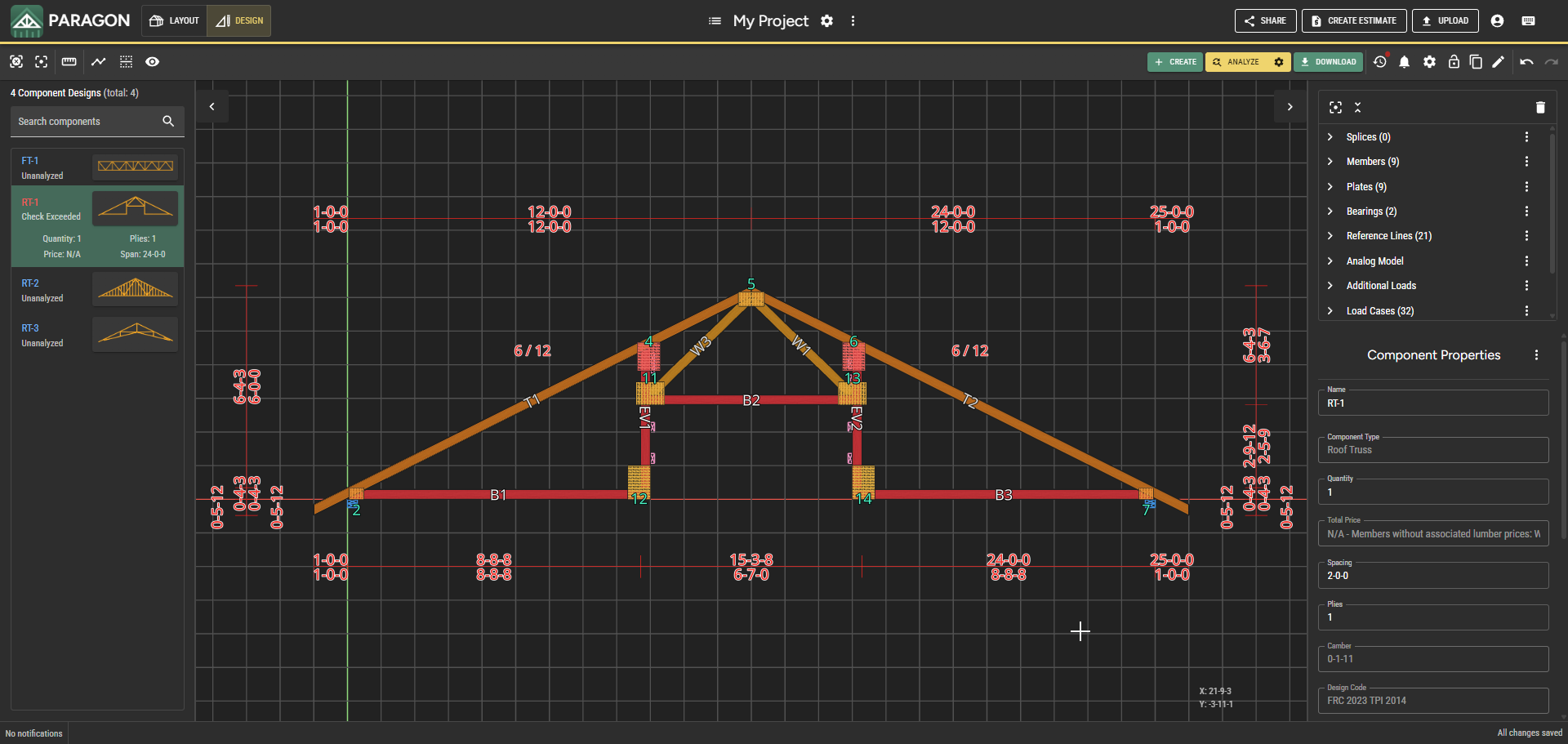
Before you begin, select a profile truss, such as a `Scissors` truss.
Lets consider this case of a profile truss where one or more checks are over capacity. You can reweb the truss by adjusting the Max Panel lengths and/or choosing the number of panels in each Web Joint Segment.
## Method 1 - Choose Max Panel Lengths
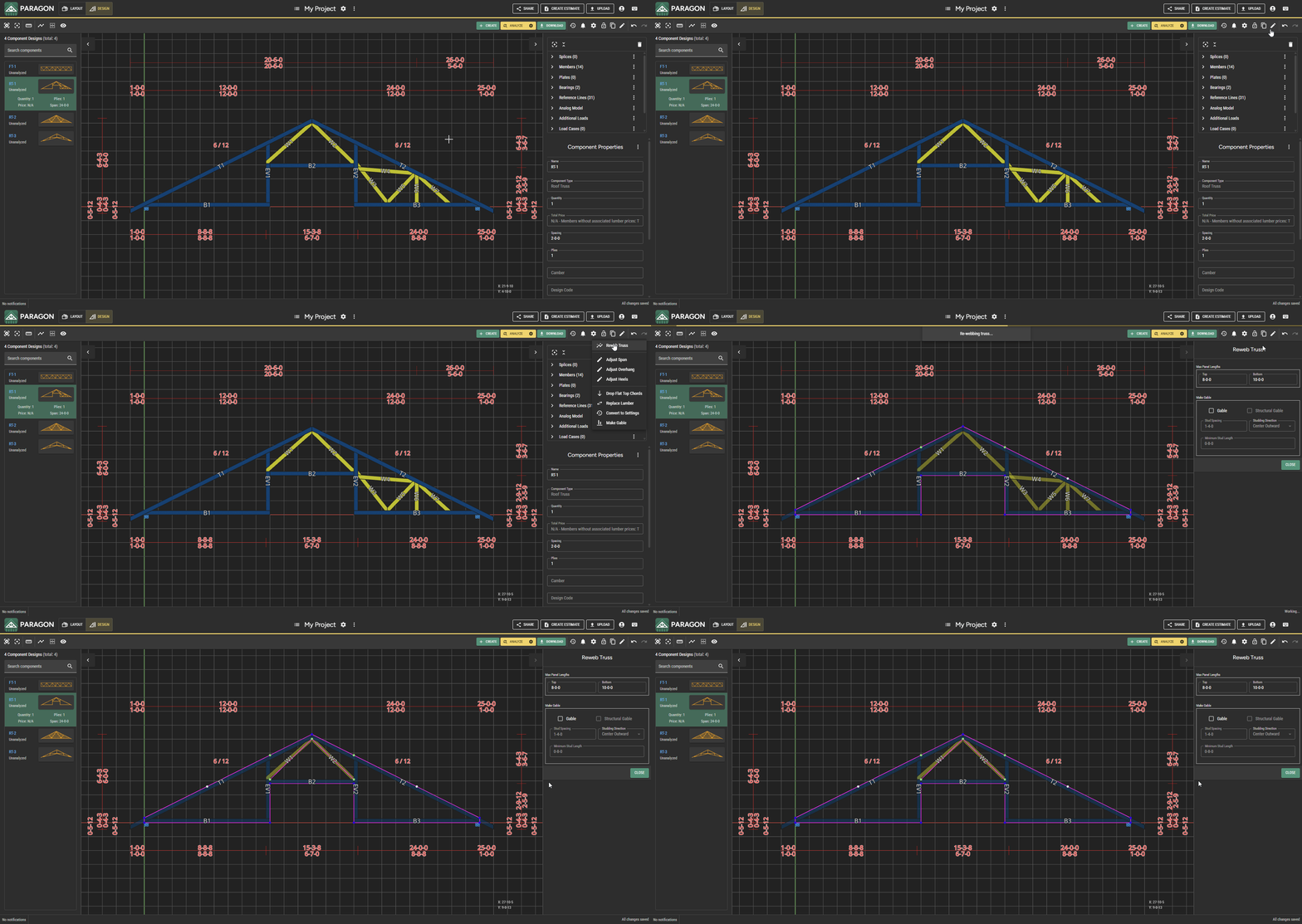
### Step 1 - Click `Edit Truss` and choose `Reweb Truss`
{% hint style="info" %}
Note
Selecting `Reweb Truss` automatically removes all members so it is not necessary to manually delete them prior to executing the command.
{% endhint %}
While in Reweb Truss mode you can see the default is 8' max panel lengths for the top and 10' for the bottom.
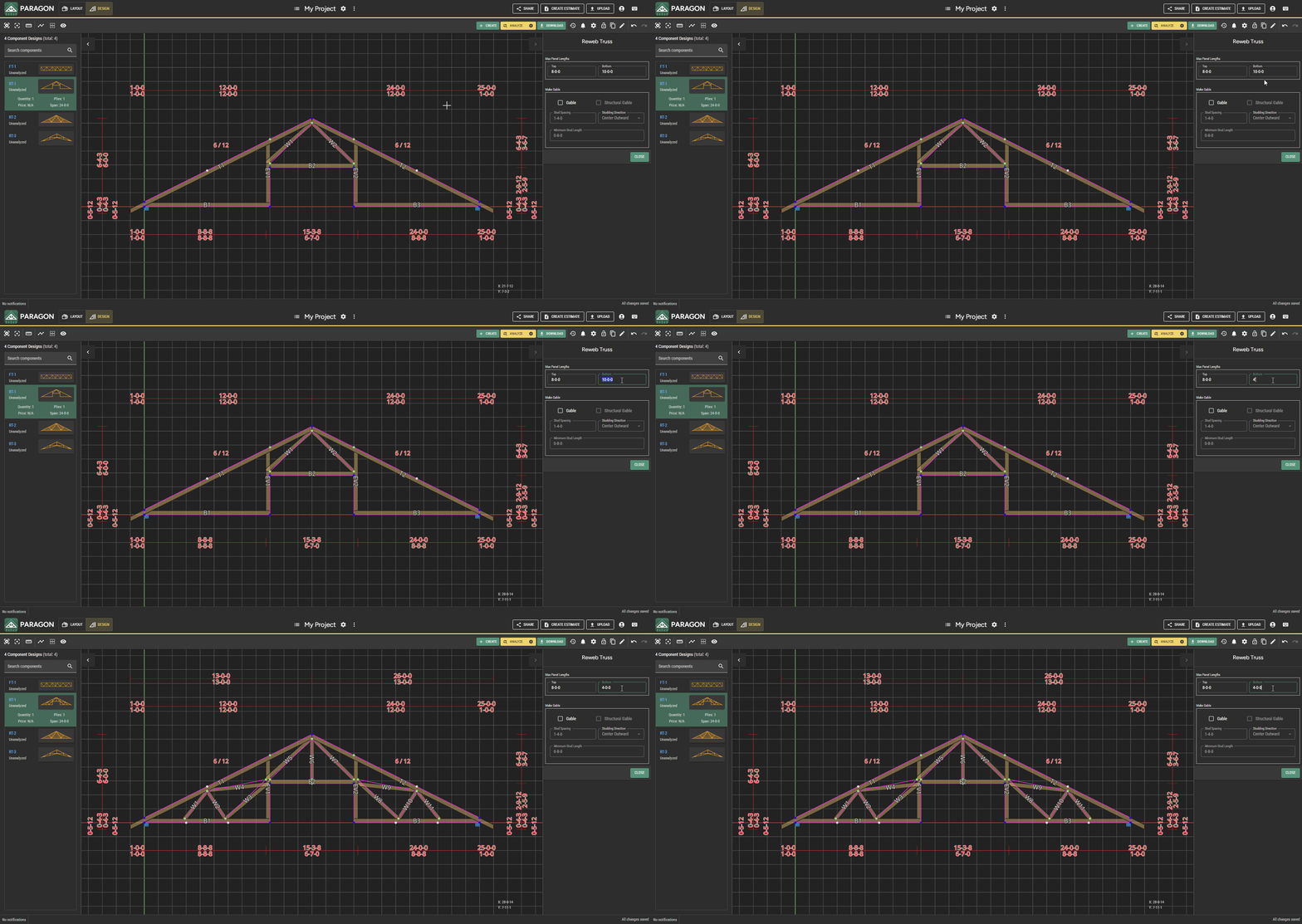
### Step 2 - Adjust the `Max Panel Lengths` as desired, such as `6'` in `Top` and `8'` in `Bottom`
Use the Max Panel Lengths Top and Bottom inputs to adjust the max length of your desired panels.
## Method 2 - Reweb Individual Segments
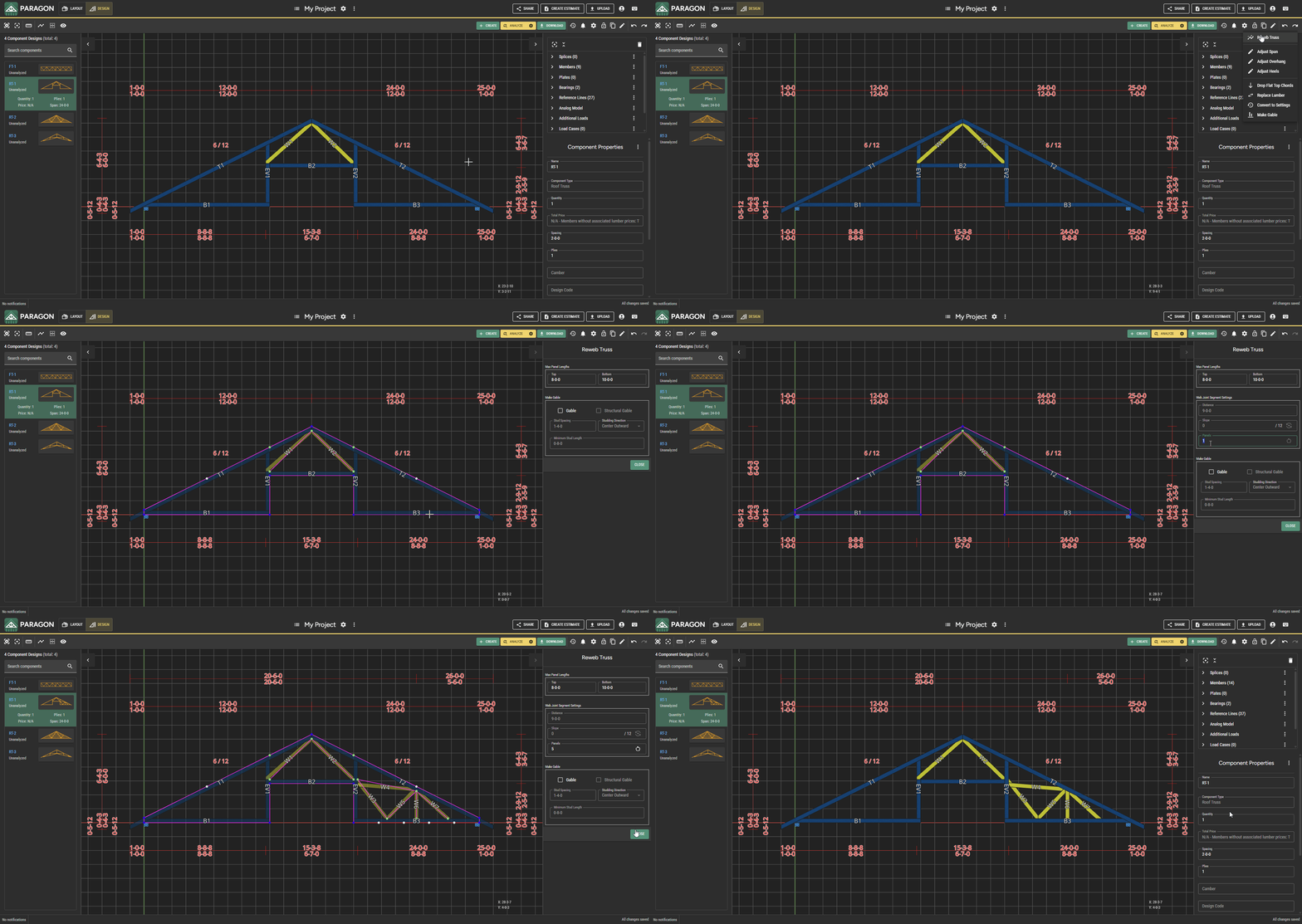
### Step 1 - Click `Edit Truss` and choose `Reweb Truss`
### Step 2 - Click a profile line to select it in the Reweb Truss panel
### Step 3 - Enter the desired number of panels for this segment and press the Enter key to save your changes
{% hint style="success" %}
Tip
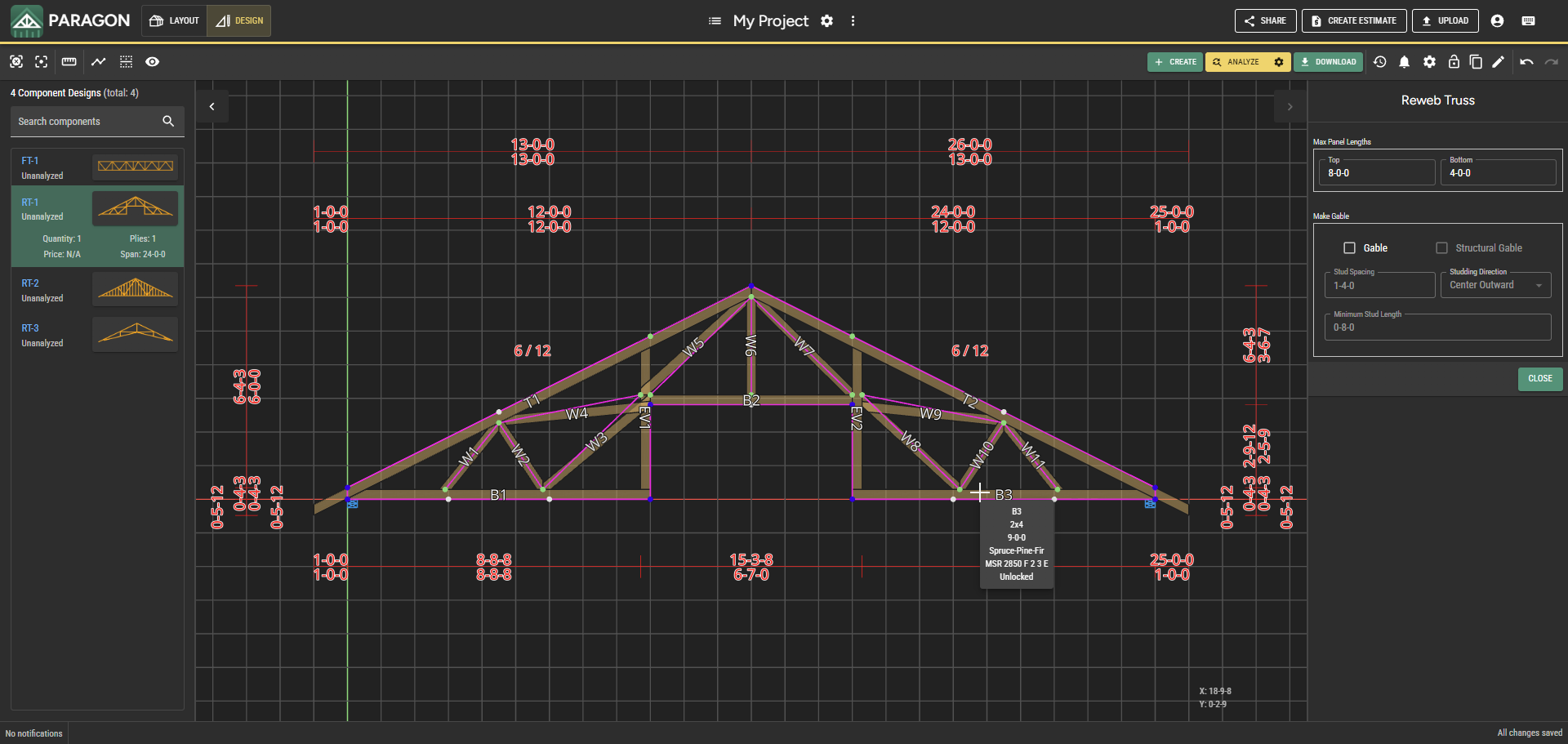
Hovering over a member will give you the length of that member
{% endhint %}
Quickly view length of member by hovering over it.
## Gabling Settings
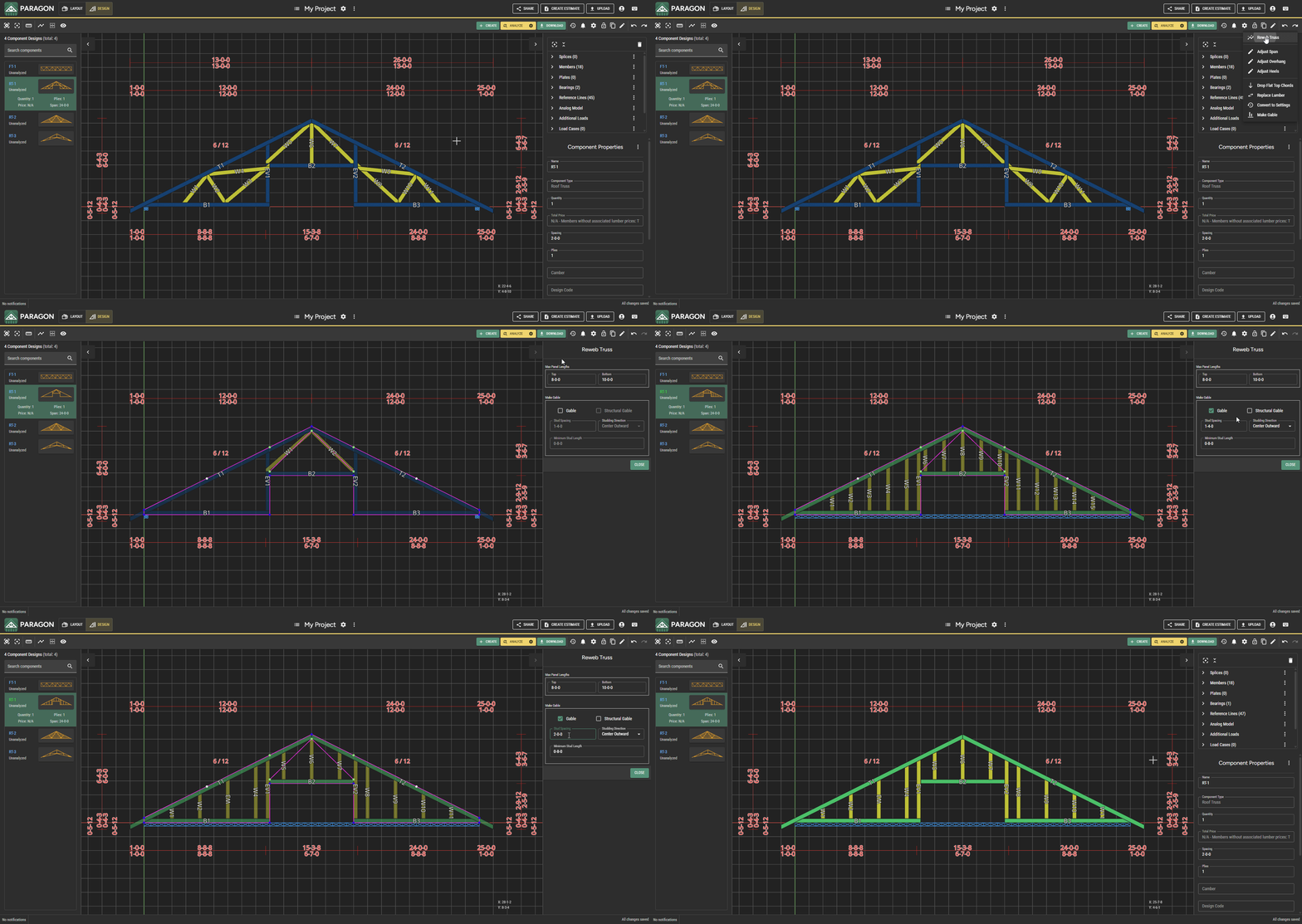
In order to web a truss as a gable, use the `Make Gable` settings in the Reweb panel.
### Step 1 - Click `Edit Truss` and choose `Reweb Truss`
### Step 2 - Click `Gable` in the `Reweb Truss` panel. Optionally select `Structural Gable` if needed
{% hint style="success" %}
Tip
If you want to make a structural gable that preserves your manual webbing changes, we suggest using the [`Make Gable`](/design/how-to/profile-truss/edit-tools-for-profile-trusses/make-gable.md) tool under `Edit Truss`
{% endhint %}
{% hint style="success" %}
Tip
A continuous bearing is automatically added when gabling a truss via the Reweb Truss tool.
{% endhint %}
### Step 3 - Set the stud layout, such as `2'` in `Stud Spacing` and `Left to Right` for `Studding Direction`
For Structural Gables, you can [reweb individual segments](#method-2-reweb-individual-segments) as needed.
---
# Agent Instructions
This documentation is published with GitBook. GitBook is the documentation platform designed so that both humans and AI agents can read, navigate, and reason over technical content effectively. Learn more at gitbook.com.
## Querying This Documentation
If you need additional information that is not directly available in this page, you can query the documentation by asking a question.
Perform an HTTP GET request on the following URL with the `ask` and `goal` query parameters:
```
GET https://docs.paragontruss.com/design/how-to/profile-truss/edit-tools-for-profile-trusses/reweb-truss.md?ask=&goal=
```
`ask` is the immediate question: it should be specific, self-contained, and written in natural language.
`goal` is what the user is ultimately trying to achieve, the reason they need the answer. Sharing it helps GitBook give you a better, more relevant answer. A goal is most helpful when it describes the outcome the user wants rather than restating the question. For example, with `ask=how do I create an API token`, a goal like `automate deployments from our CI pipeline` lets GitBook tailor the answer to that use case.
The response will contain a direct answer to the question and relevant excerpts and sources from the documentation.
Use this mechanism when the answer is not explicitly present in the current page, you need clarification or additional context, or you want to retrieve related documentation sections.